Dear Microsoft,
Every time that Outlook locks up with the little spinning wheel or mysteriously slows down my system I wish for a big "crash stop" button like the button on the iPhone. It's about control.
Dear Apple,
After about a month of working with Windows 8, I find myself trying to used the "Pull down to close" gesture on my iPhone. It's about simplicity.
Showing posts with label Technology. Show all posts
Showing posts with label Technology. Show all posts
Wednesday, November 14, 2012


Monday, October 29, 2012
Windows 8 Thoughts
I've had the Windows 8 preview since it was first available, and then the release version as soon at it was available on MSDN, running on a secondary laptop. A week ago I installed it on my primary machine, a Lenovo X201 Tablet PC with 2 touch points. Everyone I've talked (including me) agrees that it takes a week to two weeks to make the mental shift from Windows 7 to Windows 8. It's about a week to get comfortable and another week to discover all the little things you missed initially. I feel like I've used it enough to toss out some comments.
- The touch interface rocks, even on a machine with only 2 touch points.
- Draggling down to close take a while to get right. After that, no big deal.
- If you are upgrading, drivers are an issue. Shame on Microsoft and manufacturers for not being ready. Neither my Acer Aspire One or my Lenovo X201 have completely updated drivers. Every error, every blue screen so far has been a driver issue.
- On the Lenovo, I just found an updated driver to make the camera work and the fingerprint scanner is still on the fritz.
- On the Acer I'm getting weird issues. I tried to install Office 2013 from the ISO download and it repeatedly failed. Finally I dragged out a portable DVD player, burned a disc and installed it successfully that way. I had similar issues with Win8 on this machine.
- I can scroll Metro style screens using the mouse wheel which is nice. I still wish that I could hold the mouse to the right and have the window scroll like the Start screen does. That behavior is really inconsistent.
- I'm in love with the People app. I just wish they had taken it even farther.
- I miss browser add ins in the Metro style IE 10. I want to push stuff to Blogger and save items to Pocket and I can't. I end up having to just email things to myself and it feels like a step backward.
- The fact that charms like search and settings are contextual is a shift for MS. Whatever app I'm in, when I hit the Search charm, it searches that app. When I hit Settings, the options are different depending on the app I'm in.
Wednesday, June 06, 2012
I Finally Understand Windows 8
Warning: This is going to be a long post.
The Worry
I've been concerned about Windows 8 on non-touchscreens since my first frustrating encounter with the Consumer Preview back in February. I think Windows 8 is going to rock on touchscreens, even Tablet PC ones like my Lenovo X201 but laptops and desktops looked like a different story. In fairness, I didn't go all in with the Consumer Preview. I played with a boot from USB scenario until other things consumed my time.
As Windows 8 development progressed, I kept seeing this gorgeous interface that didn't seem mouse friendly. I stumbled across Michael Mace's Fear and Loathing and Windows 8 and he expressed some of the concerns that I had. However, I'm reluctant to rely on other opinions when I can try stuff myself. So I took the plunge and frankly, I think that I have Windows 8 figured out.
[Disclaimer: While I'm a Microsoft MVP for Microsoft Dynamics GP, my specialty is accounting software not operating systems. My degree is in Accounting, not anything computer related so I'm fumbling my way through this like everyone else.]
The Pain
I installed the new Windows 8 Release Preview on a 2009 era Acer Aspire 11.6" netbook with a single core Atom processor and 2 gigs of RAM. This machine was running Windows 7 previously so I have a baseline to compare it to. Frankly anything you buy today is faster than this little guy. However, this netbook is small enough for me to carry with me so I'll play with Windows 8 more and I wasn't carving up my work Lenovo, even though it's a Tablet PC, to put prelease software on. I like my paycheck.
The install didn't go well via USB or DVD. I kept getting a driver related error. Finally, stuck with a reformatted hard drive and a lot of frustration, I reinstalled a clean Windows 7 version, upgraded to the Windows 8 Release Preview and ran a disk cleanup to remove all of the upgrade crud. Suddenly I had a Windows 8 laptop. Sadly, I only had basic Microsoft video drivers. I reloaded the Intel drivers that worked fine with Windows 7. The desktop was fine but the Metro Style start screen was useless. The pictures devolved into fuzzy pixel blocks. I finally hunted down some newer Intel video drivers on the web and everything worked.
The Revelation
It took me about a week of working with Windows 8 to really figure it out. I'm going to go out on a limb and say an awful lot of people currenlty reviewing Windows 8 are full of crap. The interface isn't as different from Windows 7 as everyone thinks. With that I'll spare you the narrative of my journey and in true accountant fashion cut to the important pieces.
There is no Start Button. I'm ready to say get over it. I think this design choice was made to avoid people claiming that the Windows 8 Metro style interface was simply a overlay on top of Windows 7, kind of like Windows 3.0 was an overlay on top of DOS. But really, no Start Button is not a big deal.
Here is why no Start Button is no big deal. There is a Start button, sort of. This is the way to think of Windows 8:


The Good
Things I like:
Things you just need to know:

Things I don't like:
Don't read anything into the lengths of the various lists above. The Bad items are annoyances. The Good stuff is really good.
I think there are 2 key takeaways for me:
1) Driver support at launch is going to be critical. I was worried about Windows 8 drivers and rightly so. Just because a machine runs Windows 7 doesn't mean that THOSE drivers will work with Windows 8 as evidenced by my install and video card fun. In my mind, this was one of the things that doomed Vista. Vista with a good set of drivers generally worked just fine. Vista with the wrong or buggy drivers was a nightmare. The driver mess had largely been sorted out by the time Win 7 came along but I think the message that hardware that runs Win 7 will run Win 8 could be dangerous.
2) This is not nearly as big a switch as people think. The transition to Win 8 should be no big deal for most Win 7 or even Vista users running desktops or laptops. Once you understand that the Start Button is now simply a Start screen, most everything else falls into place.
The Parting Thoughts
This isn't that big of a switch, but for some people, like my parents, it just might be too much. They don't really understand the Start Button in Windows 7 today. They hit an icon on their desktop and go to the internet. That's about it. Then again, maybe I could give them a big Internet Explorer button on the Start screen and them to go for it.
There is also a big pile of XP users ready for something new. I see frustrated XP users pretty regularly and those who move to Win 7 are thrilled.
Microsoft needs to manage the Windows 8 message. Rather than just saying "Nope, we're not adding a Start Button", drag the mouse to the bottom left and show the link to the Start screen. Both fear and excitement are contagious but fear is easier. Microsoft needs to start the Windows 8 hype machine now to fight the fear. They can't just assume that Windows 8 will be adopted.
The Worry
I've been concerned about Windows 8 on non-touchscreens since my first frustrating encounter with the Consumer Preview back in February. I think Windows 8 is going to rock on touchscreens, even Tablet PC ones like my Lenovo X201 but laptops and desktops looked like a different story. In fairness, I didn't go all in with the Consumer Preview. I played with a boot from USB scenario until other things consumed my time.
As Windows 8 development progressed, I kept seeing this gorgeous interface that didn't seem mouse friendly. I stumbled across Michael Mace's Fear and Loathing and Windows 8 and he expressed some of the concerns that I had. However, I'm reluctant to rely on other opinions when I can try stuff myself. So I took the plunge and frankly, I think that I have Windows 8 figured out.
[Disclaimer: While I'm a Microsoft MVP for Microsoft Dynamics GP, my specialty is accounting software not operating systems. My degree is in Accounting, not anything computer related so I'm fumbling my way through this like everyone else.]
The Pain
I installed the new Windows 8 Release Preview on a 2009 era Acer Aspire 11.6" netbook with a single core Atom processor and 2 gigs of RAM. This machine was running Windows 7 previously so I have a baseline to compare it to. Frankly anything you buy today is faster than this little guy. However, this netbook is small enough for me to carry with me so I'll play with Windows 8 more and I wasn't carving up my work Lenovo, even though it's a Tablet PC, to put prelease software on. I like my paycheck.
The install didn't go well via USB or DVD. I kept getting a driver related error. Finally, stuck with a reformatted hard drive and a lot of frustration, I reinstalled a clean Windows 7 version, upgraded to the Windows 8 Release Preview and ran a disk cleanup to remove all of the upgrade crud. Suddenly I had a Windows 8 laptop. Sadly, I only had basic Microsoft video drivers. I reloaded the Intel drivers that worked fine with Windows 7. The desktop was fine but the Metro Style start screen was useless. The pictures devolved into fuzzy pixel blocks. I finally hunted down some newer Intel video drivers on the web and everything worked.
The Revelation
It took me about a week of working with Windows 8 to really figure it out. I'm going to go out on a limb and say an awful lot of people currenlty reviewing Windows 8 are full of crap. The interface isn't as different from Windows 7 as everyone thinks. With that I'll spare you the narrative of my journey and in true accountant fashion cut to the important pieces.
There is no Start Button. I'm ready to say get over it. I think this design choice was made to avoid people claiming that the Windows 8 Metro style interface was simply a overlay on top of Windows 7, kind of like Windows 3.0 was an overlay on top of DOS. But really, no Start Button is not a big deal.
Here is why no Start Button is no big deal. There is a Start button, sort of. This is the way to think of Windows 8:
- The Start screen (Metro Style Interface, pretty blocks) is the new Start Button. All the programs you use regularly go here. If you want to access all programs, in Windows 7 you hit Start | All Programs.
In Window 8 from the Start Menu right-click with the mouse and pick All Apps at the bottom. Same principle, different excecution, it's just full screen now.

- Start screen access is in the same place on the desktop. Clicking the Desktop app brings you to a Windows 7 style desktop minus the Start Button. However, if you slide your mouse into the left corner where the Start Button used to be you get access to the Start Menu. So it's very similar to Windows 7 but the Start Button isn't a ribbon on the left, it's a whole screen.
- Switching between Start and Desktop is actually easier. Even better, from the Start screen, clicking in the lower left corner brings you back to the desktop. In Win 7, we had the Start Button on the lower left and the Desktop link in the lower right corner. Now they are together like a toggle switch. Bottom left corner is your friend.
The Good
Things I like:
- Scrolling left and right with a mouse or touchpad on the Start menu actually works just fine. This should feel natural on touch screens too.
- The built in apps are clearly designed for touch, not mouse interaction...yet...they are gorgeous. I'm drawn to them.
- The Lock Screen is gorgeous. Don't be fooled by people claiming it's hard to log in. Just click on the Lock Screen with the mouse or touchpad and the login screen comes up.
- Pretty much everything worked. Office 2010 installed fine as did iTunes and most everything else. I installed a Kindle App from the Windows store and had to hunt down a Windows 8
compatible Spotify version but that was about it. SkyDrive synced my data so I'm all up todate.
- The learning curve is about over after a week to 10 days. There are still surpises but not bad ones.
Things you just need to know:
- Once I figured out that I could access Start and the Desktop from the lower left corner, the "Charms" on the right became superflous. If you slide the mouse to the bottom or top right a vertical bar with Charms - Search, Share, Start, Devices and Settings pops up. Sliding to the lower right and picking the middle selection was annoying with a mouse.
- There is still an awful lot of Windows 7 hiding in here. The desktop, keyboard shortcuts, etc. are all essentially the same.
- If you can't figure out where a setting is, like "Change what closing the lid does", drop to the desktop, open the Charms and pick Settings. Access to the Win 7 style Control Panel is here. It is NOT there if you do this from the Start menu, only from the desktop.

- Sliding the mouse to the top left opens a vertical bar with Metro style apps that are running in the background. You can switch to or close them from here. Desktop apps still show on the Desktop Taskbar.
Things I don't like:
- If you are on the Start screen, you can scroll left and right by just moving the mouse in the middle of the screen. On the Metro style apps (News, Weather, etc.) you have to click on the scroll bar at the bottom if using a mouse. It's frustrating but more importantly, it's inconsistent. It makes me wonder how these are going to work with my finger.
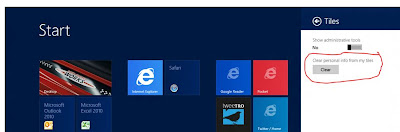
- In Start | Charms | Setting there is a Tiles selection. It way too easy to accidently hit the Clear button and wipe out all of your personal settings from the live tiles. Many tiles on the Start menu are live providing up to date news, weather, Twitter, etc. Logging back into each one to put in your username and password or location after you accidently hit Clear is frustrating. How about a "Do you really want to do this?" warning?

- Power (On, Off, Sleep, Hibernate, etc.) is still in a weird place. It's under the Settings charm. Every version of Windows has been criticize for the Power Off button/process. I'm starting to think that Microsoft does this to mess with critics.
- When you launch a non-Metro app, think Microsoft Excel, from the Start menu, the desktop actually shows in the background and then app launches. It's a little jarring and feels bolted on. This is one place where Windows 8 really shows it's internal battle between tablet and traditional PC.
- I miss Start | Run. I'm sure I'll get used to Charms | Search and I haven't spent any time figuring out how to get Run back other than reminding myself that the keystroke is Win+R.
Don't read anything into the lengths of the various lists above. The Bad items are annoyances. The Good stuff is really good.
I think there are 2 key takeaways for me:
1) Driver support at launch is going to be critical. I was worried about Windows 8 drivers and rightly so. Just because a machine runs Windows 7 doesn't mean that THOSE drivers will work with Windows 8 as evidenced by my install and video card fun. In my mind, this was one of the things that doomed Vista. Vista with a good set of drivers generally worked just fine. Vista with the wrong or buggy drivers was a nightmare. The driver mess had largely been sorted out by the time Win 7 came along but I think the message that hardware that runs Win 7 will run Win 8 could be dangerous.
2) This is not nearly as big a switch as people think. The transition to Win 8 should be no big deal for most Win 7 or even Vista users running desktops or laptops. Once you understand that the Start Button is now simply a Start screen, most everything else falls into place.
The Parting Thoughts
This isn't that big of a switch, but for some people, like my parents, it just might be too much. They don't really understand the Start Button in Windows 7 today. They hit an icon on their desktop and go to the internet. That's about it. Then again, maybe I could give them a big Internet Explorer button on the Start screen and them to go for it.
There is also a big pile of XP users ready for something new. I see frustrated XP users pretty regularly and those who move to Win 7 are thrilled.
Microsoft needs to manage the Windows 8 message. Rather than just saying "Nope, we're not adding a Start Button", drag the mouse to the bottom left and show the link to the Start screen. Both fear and excitement are contagious but fear is easier. Microsoft needs to start the Windows 8 hype machine now to fight the fear. They can't just assume that Windows 8 will be adopted.
Monday, December 26, 2011
eReader eBook Costs
I read a lot. In 2010 I read 110 books and for 2011 I’ve read 113 through Christmas. I read a lot of these books as eBooks and I keep seeing stories about what eReader is better, as if it were a hardware only choice. What about availability of books? What about the cost of books? Surely not all platforms are equal right?
So I did some research and pulled together this infographic based on the 113 books I’ve read so far this year. I wanted to find out how many of those books would have been available as eBooks and what they would have cost on various platforms specifically for Amazon Kindle, Barnes & Noble Nook, Google Books and Apple iBooks.
Click the infographic for details.

I priced each book as of 12/25/11 figuring folks would grab their shiny new eReaders and buy a book. The results were very clear.
Amazon and Barnes & Noble stood out for book availability with Amazon having 91% of my books available as a eBooks. If you like anything outside of the mainstream Amazon is your best bet with only one of my titles available as an eBook on other platforms but not on Amazon. Both Google and Apple were hit or miss for a lot of titles with only 59 of 113 titles available on all four platforms.
Amazon was the king of pricing hands down. They were never undersold and if you had bought the 59 books available on all 4 platforms on Kindle instead of Nook, you would have saved just about enough money to buy a low end Kindle.
So I did some research and pulled together this infographic based on the 113 books I’ve read so far this year. I wanted to find out how many of those books would have been available as eBooks and what they would have cost on various platforms specifically for Amazon Kindle, Barnes & Noble Nook, Google Books and Apple iBooks.
Click the infographic for details.

I priced each book as of 12/25/11 figuring folks would grab their shiny new eReaders and buy a book. The results were very clear.
Amazon and Barnes & Noble stood out for book availability with Amazon having 91% of my books available as a eBooks. If you like anything outside of the mainstream Amazon is your best bet with only one of my titles available as an eBook on other platforms but not on Amazon. Both Google and Apple were hit or miss for a lot of titles with only 59 of 113 titles available on all four platforms.
Amazon was the king of pricing hands down. They were never undersold and if you had bought the 59 books available on all 4 platforms on Kindle instead of Nook, you would have saved just about enough money to buy a low end Kindle.
Tuesday, August 09, 2011
Live Writer Problems
Ever since the last update of Windows Live Writer I’ve had some strange issues Live Writer locks up and crashes and periodically and some posts to Blogger take an extremely long time to post.
I use the Blog This add in for Live Writer to blog from IE9 for most of my posts and I think I’ve found a workaround that seems to mitigate the issues.
If I open Live Writer and leave a blank post open before I start creating posts with the add in, things seem to run much smoother. I haven’t had any shut downs with this method and though some posts still take a while to complete, they always complete.
It’s not ideal but it’s not a tough workaround either. Sadly, prior to this, Live Writer had been incredibly stable for some time.
Tuesday, September 07, 2010
How many evil empires can you support?
I’ve decide that I can only prop up 2 evil empires in my life so I’ve decided on Microsoft and Google. All of our PC’s run Windows 7 and either Office 2007 or 2010. I haven’t had time to upgrade all of them to 2010 yet. All of our phones are Android phones.
Microsoft gets: The desktop and the office suite hands down. With Office Live this is a total no brainer. Bing also wins for search on the PC. I’m hooked on the daily pictures. I support Dynamics GP and Google doesn’t compete in ERP so that’s a hands down win. Email with Outlook and note taking with One Note are also locks. Exchange gets my corporate mail.
Google gets: The phone ‘cause Windows Phone 7 isn’t out yet and is copying Apple too much. They also get the blog with Blogger because I have no interest in hosting a WordPress blog and Blogger is much more customizable than any of Microsoft’s blogging options. Google also get’s website analytics. Microsoft is simply non-existent here. Google also gets the nod for RSS reading. Microsoft’s RSS strategy just doesn’t support reading in multiple locations well. Gmail gets my personal mail, mainly for storage size and IMAP compatibility making it easy to use with Outlook.
Apple gets: Nada. I don’t even have Quicktime on my Windows machines. Here’s the thing, I don’t need to carry another device for music, Android runs just fine. I don’t think Apple does a good job of writing Windows software. iTunes is a pig and Steve Jobs is really needy. He keeps needing me to do things his way and that turns me off.
So, my limit is 2. The funny thing is, I don’t see the MS/Google ratio changing much in the near future. Other than search, the other items are really a slam dunk for me. If anything MS could create a great analytics package or web based RSS reader easier than Google will pry Excel or One Note from hands.
Sunday, June 13, 2010
OneNote Online
With the release of Office live apps I was really excited to be able to be able to move my OneNote files to the web. I had tried this before but the old Small Business option didn’t have enough storage space. The plus to that was that I had an idea of what I was doing. Since this is all new I thought that I would post a little of my experience.
My Old Setup
My old setup was a USB key that all of my OneNote files lived on. All of the files were synced to all of my PC’s by plugging in the USB key. This was actually very convenient for all of the laptops. Rarely does my stuff have to be continuously in sync and if I wanted to ensure absolute synchronization, say before getting on a plane, I could just plug in the USB key.
It was still imperfect because I often had to plug in 3 times to get 2 two computers to sync. That is, changes from computer A to the drive, changes from computer A to computer B via the drive and changes from computer B back to computer A.
OneNote Online
That of course is why I was looking forward to maintaining OneNote online. All in all the process was about what I expected. It seems to work fine for new notebooks but it’s still a little rough around the edges when moving existing data up. For my own safety, I created a new notebook online with the same name as existing notebook and copied each section from the old notebook to the new, online notebook. Then I let the notebook sync online naturally. Warning, it can take a long time.
Most of my notebooks synced fine but a few of them kept throwing errors. Typical errors were that a section was too large or a generic error that the section couldn’t sync. All of them were finally solved, more on that later. Everything is now syncing.
So here are my tips:
- Syncing can be very slow to move a lot of data up for the first time. Give yourself plenty of time
- I found some oddities where I couldn’t delete sections from within OneNote. Deleting them from the web worked. Similarly, I would delete items locally and they would come back when syncing. Deleting them from the online version worked. This only happened occasionally and with sections that had trouble syncing. It was not common.
- There doesn’t seem to be a really efficient way to get an existing notebook up to the cloud. I preferred to copy sections not move them in case something goes wrong.
- To access the notebook on a second computer, open the notebook in office.apps.live and click Open in One Note.
- Notes taken in Ink will sync back and forth but aren’t visible in the web app edition.
- The online help for sync errors is essentially non-existent. Nothing led me to the error numbers, direct link, Bing, Google, nada.
- For Sync errors:
- If it’s a generic can’t sync error, try again. In my case my internet connection had lousy upload speeds and that was part of the problem.
- For errors where the section is too large, the error log will show the specific section. Remove that section and add back parts one at a time.
- Also if the section is too large, splitting it into multiple sections works fine. It was really hard to figure out why a section was too big. Often it didn’t seem to make any sense.
- Pay attention to the recycle bin. Sometimes the error message actually refers to a recycle bin section that won’t sync. Empty the recycle bin for that notebook locally. (Right Click on a notebook name and pick Notebook Recycle Bin)
- In a few cases, creating a new section with a different name and copying each item separately seemed to fix the issue.
I think that’s about it. My OneNote files total about a 1.5 gigs so that should give you an idea of how much data I’m pushing.
Sunday, March 22, 2009
Mobile Bandwidth
Working Anywhere has absolutely nailed the status of hotel bandwidth today. The only thing missed is when my colleague Anthony brings his XBox 360 to hotels for all night racing after the work is done. That absolute kills hotel bandwidth.
If you travel at all, this article is worth a read.

If you travel at all, this article is worth a read.
Monday, March 02, 2009
RIM Really Should Have Used this Ad
RIM really should have used this ad for the new Blackberry. http://www.fastcompany.com/blog/danielle-sacks/ad-verse-effect/blackberry-shoots-apple-ad
Saturday, February 14, 2009
Microsoft Retail
Oddly, I find myself agreeing with Robert Scoble on Microsoft's new retail strategy.
Saturday, January 31, 2009
Unhappy With Google Feedburner
I'm not happy with FeedBurner right now. I've been a fan of FeedBurner to track the performance of my blog's RSS feeds. With their purchase by Google I expected good things. Well, now that Google is actually making changes, things stink. I recently allowed FeedBurner to update my account to their new Google based accounts and I'm really unhappy. The feed stats dashboard is less useful since they swtiched from bar graphs to line graphs. To add insult to injury, it often fails to load altogether (like right now). Performance is generally worse after the switch as well.
Wednesday, December 31, 2008
The Vista Experience
A couple days ago my wife and I were commenting about how much we really hate going back to XP when we have to use someone else's machine. Both of us are complete Vista converts. Same goes for Office 2007. My poor kids got laptops for Christmas with Vista Ultimate and Office 2007 Ultimate on the machines. When they go back to school they have to use Windows 2000 and who know how old a version of Office. That reminds me, they need to save school docs in the older versions of Office formats.
I've been playing with Window Server 2008 on a machine and I've heard people call it the best desktop OS ever. I'm liking it but given it's server OS design, it's really a pain to setup the first time. Simply getting a wireless card up and running involves making sure that services are turned on. Not real friendly for the average user. I'm sticking with Vista for my main machines but I'm having fun with Server 2008.
I've been playing with Window Server 2008 on a machine and I've heard people call it the best desktop OS ever. I'm liking it but given it's server OS design, it's really a pain to setup the first time. Simply getting a wireless card up and running involves making sure that services are turned on. Not real friendly for the average user. I'm sticking with Vista for my main machines but I'm having fun with Server 2008.
Monday, December 08, 2008
Intel's Internal Social Media Guidelines
Thanks to Josh Bancroft for pointing out Intel's internal social media guidelines. This are a terrific starting point for companies looking to start blogging.
Tuesday, November 25, 2008
15 Tech Secrets for the Serious Road Warrior
I came across this PC World article on 15 Tech Secrets for the Serious Road Warrior via Lifehacker. I figured it would be another, "tether your phone" kind of list but I was pleasantly surprised by a number of items on the list. It's definitely worth the read.
Wednesday, October 22, 2008
Library Thing Some More
I've been using Library Thing for a month now and I have to say that I'm happy that I switched from Shelfari. Library Thing is a lot more flexible and over time, the interface, while still ugly, is less annoying than Shelfari's. Shelfari was gorgeous but switching between shelf and list view was an exercise in frustration.
You can see my LibraryThing Library here. If you're a book lover, give LibraryThing a try.
You can see my LibraryThing Library here. If you're a book lover, give LibraryThing a try.
Lost mp3 Player Idea
I had an idea for little mp3 players like the Shuffle. It's tough to put an identifying sticker or other mark on the player itself. But if you record a short mp3 file and put it as the first file on the player you still have an easy way for people to find you should you lose your player.
Monday, October 13, 2008
Wednesday, October 01, 2008
Subscribe to:
Posts (Atom)